
If you have ever stared at your FPS counter while a game turns into a slideshow the second a smoke grenade pops, you have probably asked the same question every PC gamer asks sooner or later: what component actually decides game FPS? Well, as you probably already know, no single part gets to decide this all the time. Your frame rate is the result of several components working together, and the slowest one in that moment is the problem.
Sometimes it is the graphics card doing all the heavy lifting and begging for mercy. Sometimes it is the CPU choking on physics, AI, player positions, and whatever else the game engine threw into the pot. And sometimes, just to keep things interesting, memory speed, storage behavior, or even thermal limits can cause FPS issues.
That is why this topic confuses so many people. One player upgrades the GPU and gets a huge FPS boost. Another does the same and gets almost nothing. Then somebody on a forum swears the CPU is everything, while another guy acts like the GPU is the only part on Earth that matters. Both are right, both are wrong, and both are probably typing with too much confidence.
The truth is simpler than the debates make it sound: FPS depends on which component is currently holding back the frame from being completed and sent to your screen. So if you want more frames, smoother gameplay, and fewer moments where your aim dies before you do, you need to understand what is actually happening under the hood.
What’s Actually Happening Under the Hood?
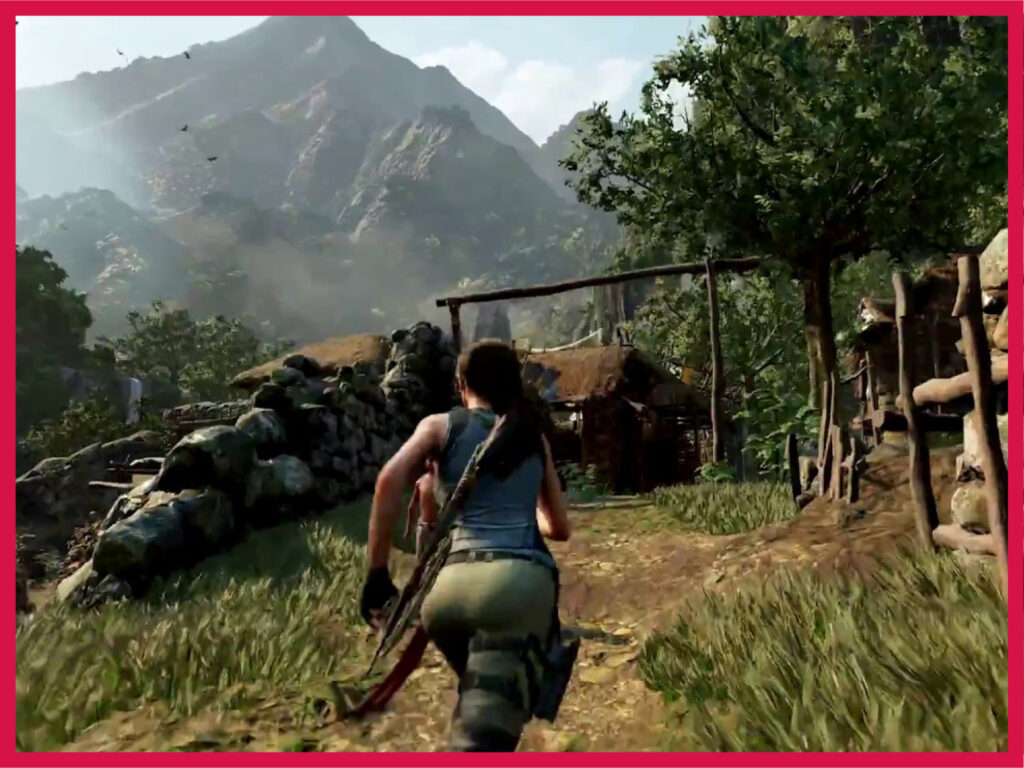
Yeah, we literally jumped into that one.
A running game is a real-time rendering machine. Unlike a video render that happens once your timeline is all set, a game has to render scores of frames every second, in real-time, while taking input and calculating a bunch of stuff on your screen. A single frame is a single image being drawn by the GPU.
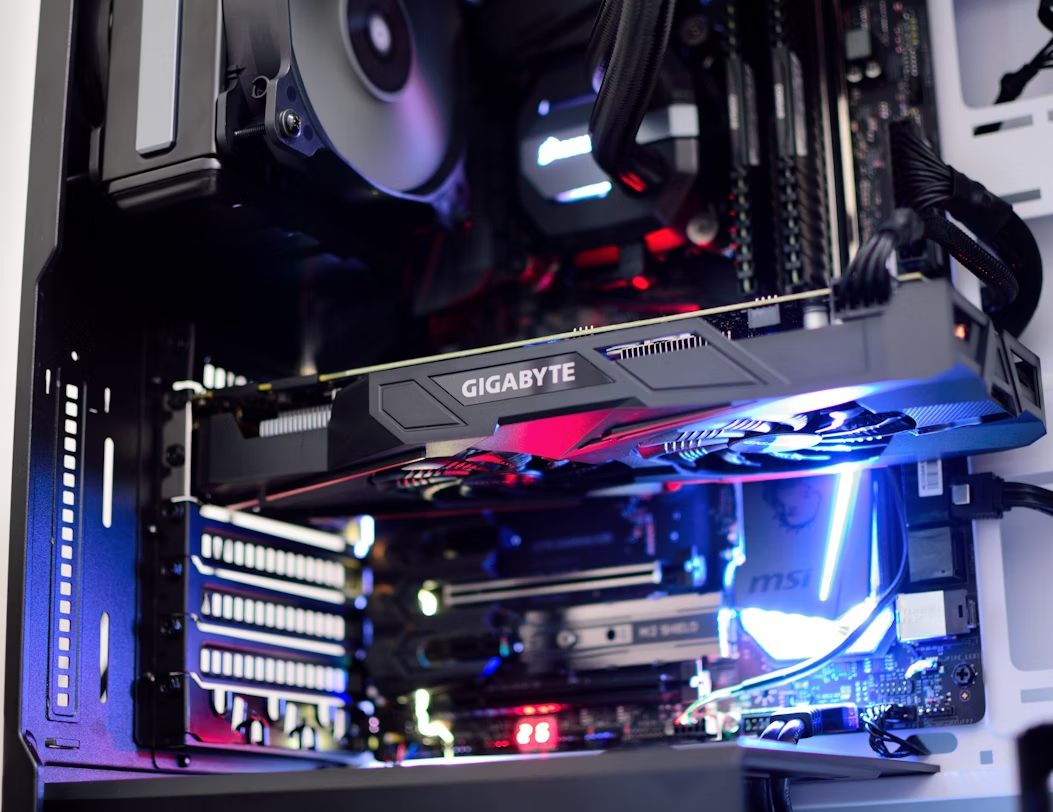
And that GPU does not draw it all on its own. It needs some physics math from the CPU, some wall texture from the VRAM, even some files from the system RAM. It needs to be a certain temperature. Otherwise, it is hard-coded to “throttle down” to avoid overheating. All that. So, basically, rendering frames in real time (aka running games) is a team effort. The most important players in the team, however, are the CPU and the GPU.
- CPU handles game logic, simulation, draw calls, and all the behind-the-scenes work that tells the system what needs to happen next.
- GPU takes that pile of instructions and renders the actual image you see on screen.
If either one falls behind, your FPS drops. That is the quick take. Plenty of people waste money upgrading the wrong part. Buying a monster GPU for a system that is getting strangled by the CPU is like bolting a rocket engine onto a shopping cart.
The goal here is to break down which parts increase your FPS and why your PC’s “brain” and “eyes” need to stay in sync. The CPU has to prepare each frame fast enough. The GPU has to render that frame fast enough. Memory has to feed data without dragging its feet. Cooling has to keep clocks stable. Even game settings and resolution change which component is under the most pressure. So the real question is not just “what component decides FPS?” It is “which component is the limiting factor right now?”
Why Your Graphics Card Usually Holds the Keys
In most modern games, the GPU is the part that usually decides your FPS. Not always, but often enough that it deserves top billing. It draws every frame, every shadow, every reflection, every bit of lighting, every strand of hair some developer thought needed physics. When you raise the resolution, crank texture quality, enable ray tracing, or turn on the heavy kind of visual settings, you are leaning harder and harder on the graphics card. That is why in probably 90% of the gaming conversations people have, the GPU ends up being the star of the show. If the card cannot render frames fast enough, your FPS drops.
That is also why upgrading your GPU is usually the quickest path to a big frame rate jump. Swap in a stronger card and, in the right system, you can go from barely scraping 45 FPS to cruising past 100. This is especially true at 1440p and 4K, where the graphics card has to chew through far more pixels every single second. The higher the resolution and the prettier the effects, the more the GPU becomes the main gatekeeper. That is why people who mostly play modern AAA games with high settings care so much about graphics cards. The GPU is usually the part doing the hardest labor.
The Brain Behind the Frames
The CPU absolutely affects FPS, and anyone who says otherwise should be forced to watch a benchmark at 720p until they understand what they did wrong. The GPU may draw the frames, but the CPU tells it what needs to be drawn in the first place. It handles game logic, tracks player actions, processes enemy AI, runs physics calculations, manages animations, feeds draw calls to the graphics card, and upkeeps the whole simulation that a video game is.
If the processor cannot keep up, the GPU ends up waiting for instructions, which is a very expensive way to waste silicon. This is called CPU bottlenecking.
If your CPU is too old, too slow, or simply outmatched by the game, your frame rate will slam into a ceiling no matter how powerful your GPU is. You can pair a top-tier graphics card with a tired old processor and still end up wondering why your FPS refuses to climb. That is because the CPU often determines your floor and your consistency, especially in games with lots of moving parts. Competitive shooters, big open-world games, strategy titles, and anything with heavy simulation tend to expose weak CPUs fast. One moment your average FPS looks decent, then a busy firefight starts, NPC routines kick in, physics objects start flying, and your frame times go ugly.
The Settings That Make Your FPS Tank (or Fly)
A lot of people talk about FPS like it is decided the moment you buy your parts, but that is only half the story.
In-Game Settings
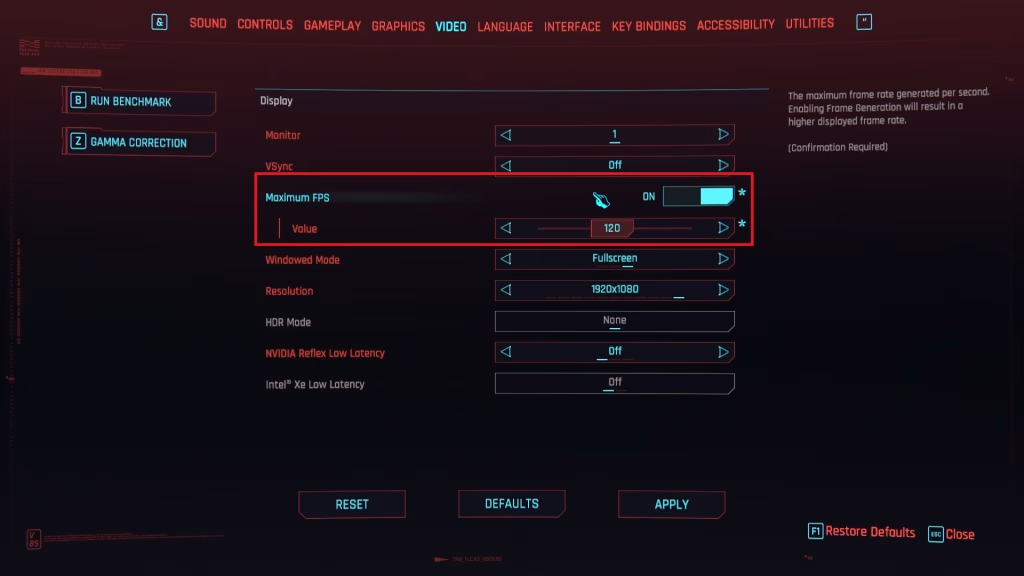
The settings menu has ruined more frame rates than bad hardware ever will. You can have a solid CPU, a strong GPU, enough RAM, and still kneecap your own performance because you clicked every shiny option like a kid in a candy store. Game settings decide how much work your hardware has to do per frame, and some of them are absolute criminals.
Resolution is the obvious one. Going from 1080p to 1440p or 4K gives the GPU a lot more pixels to push, which means lower FPS unless your card has the muscle for it. Then there are settings like ray tracing, volumetric lighting, screen-space reflections, shadow quality, ambient occlusion, and fancy particle effects. These can hit performance very hard.
The biggest offenders are usually the flashy effects people barely notice once the game loads or match starts. Ray tracing is the classic example. It can make lighting and reflections look fantastic, but it is one of the most taxing technologies in games.
Volumetric clouds, fog, and god rays can also be brutally expensive, especially in open-world games where the engine is already juggling a hundred other things. Shadow quality is another sneaky one. High and ultra shadows often cost a lot more FPS than the visual upgrade justifies.
Texture quality is a bit different, though. It does affect performance, but usually more through VRAM usage than raw GPU horsepower. If your graphics card has enough VRAM, high textures may not hurt much.
The smart move is not maxing everything. It is finding the settings that look good enough without draining frames for no reason.
Game Optimization
Then there is optimization, which is the part nobody likes because you cannot buy your way out of it as easily. Some games are built well. They scale nicely, use hardware efficiently, and run smoothly with sensible settings. Others show up broken and stutter even on good rigs. These games compile shaders like a permanent a side quest.
That is why two games can behave completely differently on the same PC. One will glide along at high FPS like it respects your time. The other will crawl and hitch like it was stitched together five minutes before launch.
Which Component Should You Blame?


The part to blame depends on the kind of game you play and how you play it.
In fast-paced shooters, especially at competitive settings, the CPU and GPU are constantly passing work back and forth, and either one can become the problem. If you are pushing high frame rates at 1080p in Counter-Strike, Rainbow Six Siege, Valorant, or Overwatch, the CPU becomes more important than many people think because it has to feed frames fast enough to keep the GPU busy.
In big open-world RPGs and cinematic AAA games, especially at 1440p or 4K, the GPU usually takes the bigger beating because visual quality becomes the main load.
Strategy games, simulation-heavy titles, and large multiplayer matches can also hammer the CPU hard thanks to AI/NPC, pathfinding, game logic, and all the stuff happening behind the screen that players never see but definitely feel.
So when your FPS drops, check the obvious suspects first.
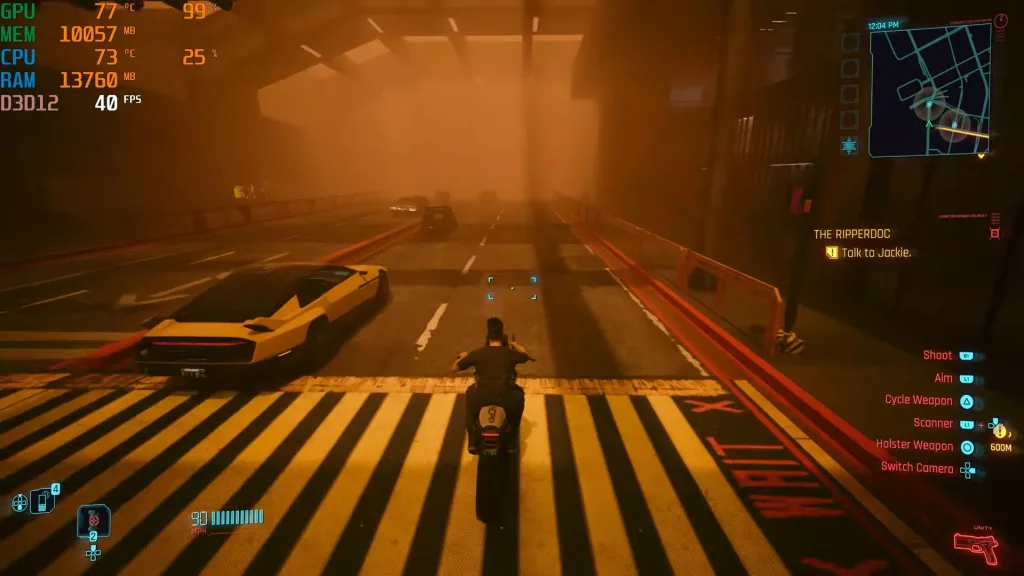
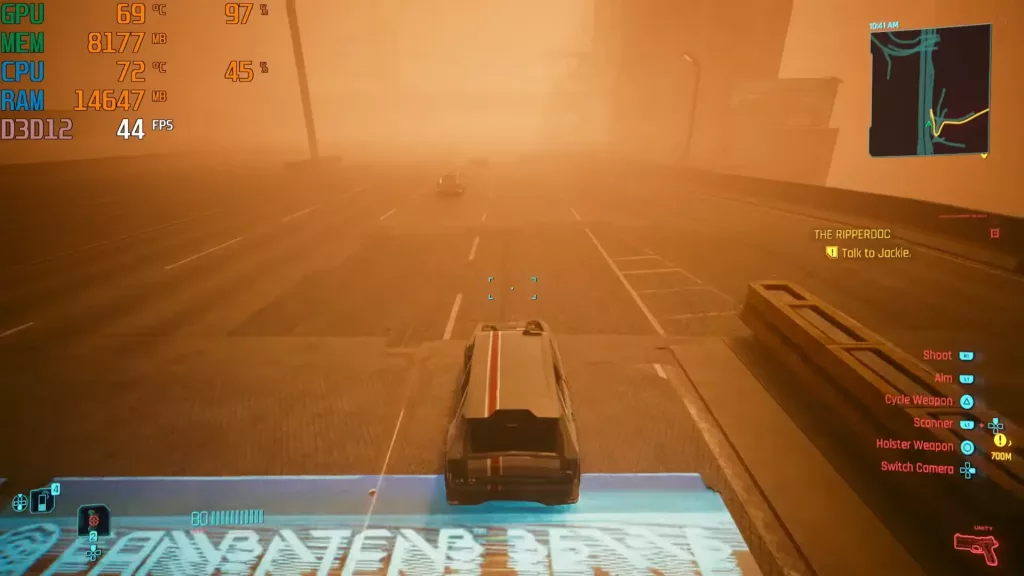
- Look at GPU usage and CPU usage. If your GPU is pinned near full load, it is probably the main limiter. If GPU usage is lower than expected while one or more CPU cores are getting crushed, the processor is holding you back.
- Check your temperatures too, because thermal throttling can quietly turn good hardware into disappointing hardware.
- Look at your settings, especially resolution, ray tracing, shadows, volumetrics, and anything else that sounds expensive because it usually is.
- Watch your VRAM and RAM usage (VRAM is in the graphics card panel).
- Pay attention to whether the problem is low average FPS or stutters, because those are not always caused by the same thing.
In the end, no single component decides FPS in every game, every time. It is a team effort, and the part you should blame is the one failing to keep up with the job you are asking your PC to do.